

TL;DR
VirtualDJ now supports OneLibrary exports to compatible DJ hardware. Full compatibility between applications still isn’t guaranteed.
Serato’s 5.0 beta lets streaming tracks and local files share a crate. That doesn’t give them the same playback or export options.
Before changing software or taking a USB to unfamiliar gear, test a small playlist. Check the audio, cue points and beatgrids on the destination setup.
A track loads on another player, but the cue point you use to start your mix is missing. Or the beatgrid you corrected is wrong again. The music made it across. Now you have preparation to redo.
That’s the problem I care about with DJ library compatibility. Getting the audio onto another system is only part of the job. I also want to know whether the work I’ve already done will be there when I load the track.
Two recent announcements address different parts of this. Serato is making it easier to organize local files and streamed music together. OneLibrary is making it easier to export prepared collections to compatible gear. Neither removes the need to check what your particular setup supports.
A shared crate doesn’t mean shared access
Serato announced its DJ 5.0 beta on September 10. Its Open Streaming feature lets you sign into multiple supported streaming services at once and put tracks from those services in the same crate as your local files. A crate is Serato’s way of organizing a collection of tracks.
That’s convenient when you’re building a set from several sources. But a local file and a streaming entry still depend on different things. With a local file, you have the audio stored on your drive. With a streamed track, playback depends on the service and the options its DJ integration supports.
rekordbox’s Spotify integration shows why this distinction matters. Version 7.2.18 made Spotify tracks available in EXPORT mode, the part of rekordbox used to prepare music for compatible players. Yet the release notes explicitly say those tracks can’t be loaded or played on CDJ/XDJ players or all-in-one systems through USB EXPORT or LINK EXPORT.
USB EXPORT prepares a drive you take to the player. LINK EXPORT lets a compatible player load music from rekordbox over a connection to your computer. Seeing a Spotify track in EXPORT mode doesn’t mean either route can play it. Supported hardware may offer another way to access Spotify, but that’s a separate playback method.
Check that method before you build a set around it.
Streaming changes can affect preparation too. In February, rekordbox warned that a change in SoundCloud’s audio format could misalign existing cue points and beatgrids. Affected tracks could need reanalysis or their cue points reset. You don’t have to switch applications for preparation to need checking again.
Serato also recommends keeping your existing version installed and avoiding its beta for critical performances. Try the new features somewhere a failure won’t interrupt a gig.
What OneLibrary can carry
On September 15, AlphaTheta announced VirtualDJ support for OneLibrary. A supported version of VirtualDJ can export its collection to a USB drive in that format for use on compatible DJ hardware.
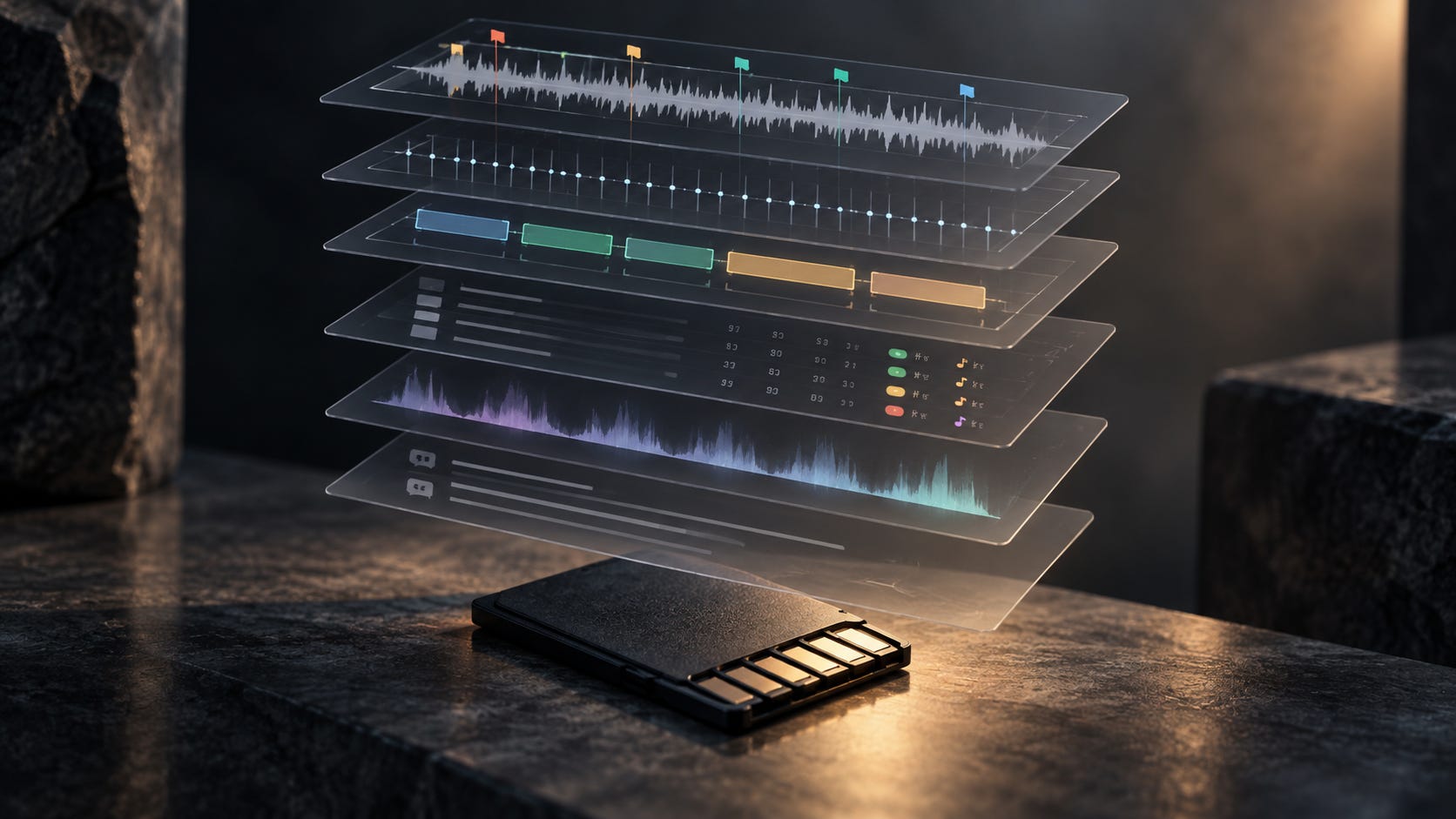
AlphaTheta says OneLibrary exports can include music files, playlists, cue points, beatgrid information and waveforms. Cue points mark places you want to return to. Beatgrids map the beats so the software or player can follow the track’s timing.
But AlphaTheta also says full compatibility between DJ applications isn’t guaranteed. Export specifications can differ by application. Don’t assume every saved loop, comment or correction will transfer just because both products support OneLibrary.
Exporting a playlist to a player and importing it into another DJ application are different tests. A successful USB export tells you what worked on that player. It doesn’t establish what another application will import.
The player matters too. AlphaTheta documents two USB library formats: OneLibrary and the older Device Library. Its March notice describes cases where playlists appear on one generation of player but not another, with conversion sometimes needed. Firmware can also affect which library format a player reads.
Before switching software or playing on unfamiliar equipment, check the export format, the exact player model and firmware and the preparation data you rely on.
Test one playlist before moving everything
Choose a small playlist you’d actually play. Twenty tracks is a reasonable starting point. Include a track with a manually corrected beatgrid and another with cue points or saved loops you use.
Decide what you’re testing: a USB export to a player or a move into another DJ application. Write down the software version, export format and destination. For hardware, include the model and firmware version. If the test works, you’ll know which setup you tested.
Before exporting, note where the audio comes from. Separate files stored on your drive from tracks supplied by a streaming service. For streamed tracks, check the documented playback requirements for the software and hardware you intend to use.
For a USB test, export the playlist through your normal process and load it on the destination player. For an application move, use the documented import or conversion process. Keep a backup of your original library before trying either.
Check:
Can you find and load every track?
Are your cue points at the right positions?
Does the manually corrected beatgrid still line up?
Is the playlist order intact?
Did the saved loops and comments you rely on transfer?
Play through the sections where those details matter. A cue marker can look present without being where you expect it. A grid deserves more than a glance at the first beat.
If something’s missing, work out whether the destination doesn’t support it or whether you need to change the export process. Do that with a small playlist before committing your whole collection.
If you’re also changing how the players connect, I covered the network side in Your DJ Booth Is a Network Now. Library compatibility and the connection carrying the music both need to work.
Back up the preparation too
A backup of your music folder protects the files in that folder. It doesn’t necessarily include the library database or other files where your DJ application stores preparation.
The backup procedure depends on the application. Serato’s instructions identify the music files, the _Serato_ folders and a separate Library folder. It can create _Serato_ folders on external drives too, so check those rather than assuming everything lives on your computer.
rekordbox provides a library backup and restore process that includes your collection, playlists, cues and analysis information. It also gives you the option to back up the music files.
Use the official instructions for your application and version. A USB prepared for performance and a backup you can restore into your application serve different purposes. Know which one you’ve made.
Test the restore process on a separate setup or with the existing library preserved. Check a familiar playlist, a corrected grid and the cues you actually use. For streamed music, also check what remains accessible if the service or account is unavailable.
OneLibrary may make a move easier. I’d still want to load a familiar track on the destination setup and check the details myself.
Which part of your prepared library have you actually tested on another system?
Resources
AlphaTheta: VirtualDJ officially supports OneLibrary, September 15, 2026.
AlphaTheta: OneLibrary features and compatibility FAQ.
Serato: Lucid Beatgrids Just Dropped in the Serato DJ 5.0 Beta, September 10, 2026.
rekordbox: Version 7.2.18 release information, August 18, 2026.
rekordbox: Version 7.2.10 release information, February 3, 2026. Includes the warning about SoundCloud cue points and beatgrids.
AlphaTheta: Important Notice for Customers Using USB Devices with Our DJ Equipment, March 18, 2026.
Serato: Backing up and moving your library to a new computer.
rekordbox: Library backup and transfer FAQ.